
Holiday Changes
How to Change Holidays in the Automated Telecom Platform
This guide explains how to update holiday dates in the Automated Telecom platform and verify that holiday calls are routed correctly.
Overview
Holiday routing is controlled by a holiday Time Frame and the Answering Rules assigned to the main routing user, usually User 300 or User 301. If the main routing user is not either 300 or 301 please look at other users that have a holiday answering rule.
In many cases, you may not need to change the holiday routing. For example, if your company uses a generic holiday greeting that can be used throughout the year, you only need to update the holiday dates. Once the dates are updated, the existing holiday message will play automatically during the selected holiday schedule.
You only need to update the routing if calls should go somewhere different than they have in the past.
Before You Begin
You will need administrator access to the Automated Telecom portal.
You should also know whether the holiday routing needs to stay the same or be changed. Common holiday routing destinations include:
- A generic holiday greeting
- A holiday voicemail box
- Another user or mailbox
- An auto attendant
- A specific holiday message or call flow
Step 1: Log In to the Automated Telecom Portal
- Log in to the Automated Telecom portal.
- Go to Time Frames.
If you need help logging in please use this Knowledge Base article.
Step 2: Update the Holiday Time Frame
- Locate the holiday Time Frame that needs to be updated.
- Edit the holiday entry.
- Set the option to Specific dates or range = commonly used to define holidays or other special events such as New Year’s or a training closure. Use pop-up calendars to select the To and From dates with a time slider to specify when the time range will apply. You can add more dates by using the Add date range
 icon or remove them with the Remove
  icon.
icon. - Select the correct holiday date.
- Set the correct start and end time for the holiday.
- Save your changes.
If your holiday greeting and routing have been used in the past and do not need to change, this may be the only update required. The existing holiday message will play on the dates and times you selected.
Step 3: Verify the Holiday Answering Rule
After updating the holiday Time Frame, verify that calls will route correctly.
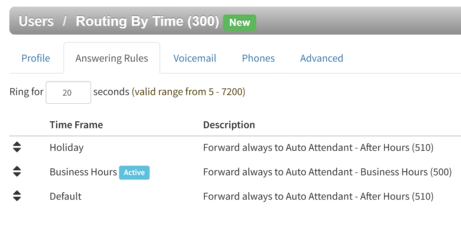
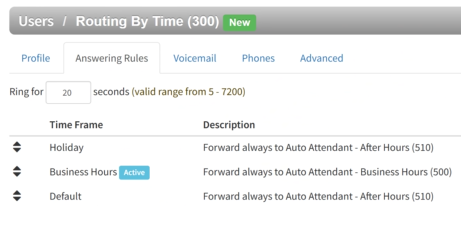
- Go to Users.
- Open User 300 or User 301.
These are commonly used as main routing users. - Go to Answering Rules.
- Look for the rule labeled Holiday.
- Confirm that the Holiday rule is routed to the correct destination.
Step 4: Update the Holiday Routing if Needed
If the Holiday rule is already routing correctly, no routing changes are needed.
If the Holiday rule is not routing to the correct destination, edit the Holiday Answering Rule.
You can route the holiday rule to:
- A different extension
- A voicemail box
- Another mailbox
- An auto attendant
- Another call routing destination used by your organization
Update the routing destination, then save the changes.
Using an Auto Attendant for Holiday Calls
If you would like holiday calls to go to an auto attendant, update the Holiday Answering Rule so it routes to the correct auto attendant extension.
If you also need to update the auto attendant greeting or recording, follow this guide:
PBX Admin Guide - Working with Automated Attendants
That guide explains how to edit auto attendants and manage greetings or menu prompts.
Final Check
Once the holiday date and routing have been reviewed:
- Confirm the holiday Time Frame is set to the correct Specific Date.
- Confirm the start and end times are correct.
- Confirm the Holiday Answering Rule exists on User 300 or User 301.
- Confirm the Holiday Answering Rule routes to the correct destination.
- If the routing has been used in the past and is still correct, no further changes are needed.
- Save all changes.
Your holiday schedule is now updated.